
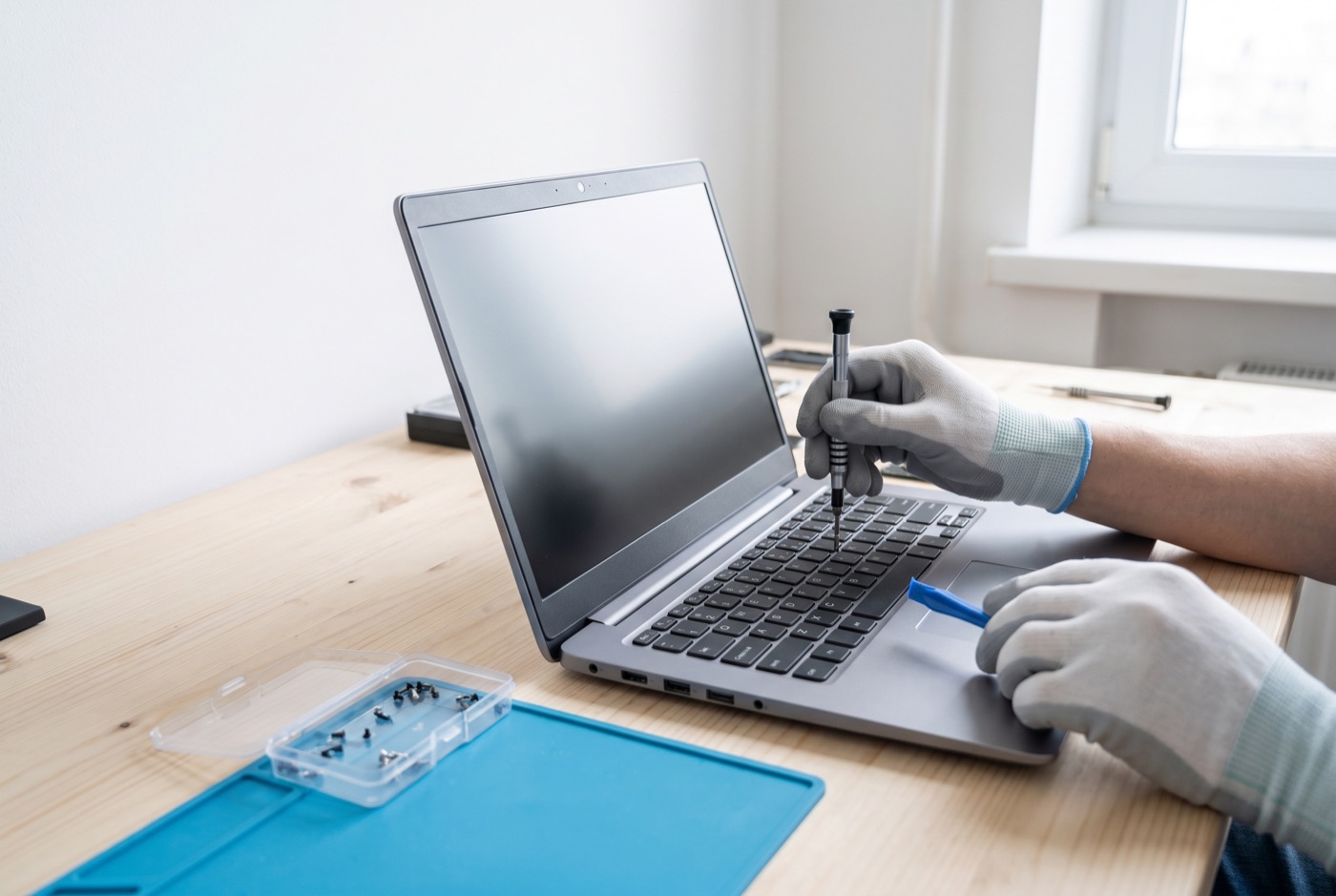
Computer and Laptop Repairs in Burwell
Getting your Windows PC or laptop repaired in Burwell is only half the job - how you look after it afterwards is what determines how long it stays problem-free.
What We Do
We repair Windows PCs and laptops for businesses and offices in Burwell and nearby, working from our base in Bury St Edmunds. We deal with slow machines, failed Windows updates, virus and malware infections, hardware faults, and Microsoft 365 issues. We have been supporting businesses with these problems since 1990. We do not work on Apple Macs.
Why Aftercare Matters as Much as the Repair
Most machines that come back with the same fault within a few months were not poorly repaired the first time. They were returned to the same conditions that caused the problem. A virus infection that is cleaned up thoroughly can return within weeks if the machine has no active security software and the user clicks on the same kinds of links. A hard drive that runs hot because the machine's vents are blocked will fail again after replacement for exactly the same reason.
Understanding why the fault happened is the starting point for good aftercare. A technician worth using will explain the cause, not just the fix.
Simple Maintenance Tasks That Prevent Common Faults
Most recurring PC and laptop problems in a business setting come back to a short list of neglected tasks. None of them require technical knowledge to carry out.
- Keep Windows updated. Windows Update exists to patch security vulnerabilities and fix software bugs. Machines set to defer or ignore updates are exposed to known threats. Under our support contracts, updates are managed for you. If you are not on a contract, set Windows Update to install updates automatically and check monthly that it is doing so.
- Do not let the drive fill up. Windows needs free space on the system drive to function properly. A drive that is more than 85 to 90 per cent full will cause the machine to slow significantly and can trigger errors that look like hardware faults. Delete files you no longer need, archive old data off the machine, and check available space every few months.
- Keep the vents clear on laptops. Laptops used on desks, particularly on fabric surfaces or with the rear vents against a wall, can overheat. Overheating is a leading cause of premature hardware failure - processors, batteries and hard drives all degrade faster at high temperatures. Use the machine on a hard, flat surface and keep the vents unobstructed.
- Run active security software and keep it current. A virus scan that runs on demand but has no active monitoring is not protecting your machine. Business-grade security software monitors in real time and catches threats before they take hold. If you are not sure what is running on your machines, ask.
- Back up data regularly and test the backups. A backup that has not been tested may not restore when you need it. Schedule regular backups to at least one off-machine location - a network drive, a server, or a cloud service - and confirm periodically that a file can actually be recovered from it.
- Restart machines regularly. Windows applies many updates and maintenance tasks on restart. Machines left in sleep or hibernate mode for weeks at a time accumulate pending changes and can become unstable. A weekly restart is a simple habit that reduces a surprising number of software problems.
Microsoft 365 - Keeping It Running Smoothly
Microsoft 365 issues in a business setting are often maintenance failures rather than faults. Licences that are not renewed lapse silently and leave staff unable to open documents. Outlook profiles that are not periodically cleared of cached data slow down and corrupt. OneDrive sync errors, if ignored, can result in files that appear saved but are not backed up to the cloud.
Check your Microsoft 365 licence status regularly. Make sure each machine accessing 365 is assigned correctly to an active licence. If Outlook is running slowly, a rebuild of the Outlook profile - not a reinstall of the whole application - usually resolves it. These are tasks a competent technician can show you how to monitor yourself.
What to Do After a Virus Infection Is Cleared
After a malware infection is cleaned up, three things should happen before the machine is returned to normal use. First, all passwords used on that machine should be changed from a different, clean device. Malware commonly records keystrokes and login credentials, and changing passwords on the infected machine itself may just hand the new credentials to the same threat. Second, check that any browser extensions or plugins that appeared during the infection have been fully removed. Third, review how the infection got onto the machine - phishing email, a downloaded file, an unpatched browser - and address that route specifically.
Skipping these steps is the most common reason a business experiences a second infection shortly after the first.
Ongoing Support - What Is Included and What It Costs
The most effective aftercare for a business is a managed support contract, where updates, backups and security are monitored continuously rather than checked reactively when something goes wrong.
When comparing managed support plans, check whether they include unlimited remote and phone support, with updates, backups and security kept in check. On-site visits are charged separately at a £60 call-out fee plus labour. Monthly pricing per computer: £36 for one machine, £31.20 each for two to three, £25.20 each for four to nine, £22.20 each for ten to seventeen, £21.60 each for eighteen or more. All prices exclude VAT.
Business Premium includes everything in a standard plan plus on-site labour and call-outs within the monthly price. Per computer per month: £54 for one machine, £42 each for two to three, £38.60 each for four to six, £33.80 each for seven to nine, £31.20 each for ten to twelve, £28.40 each for thirteen to fifteen, £25.40 each for sixteen to nineteen, £24.40 each for twenty or more. All prices exclude VAT.
When buying pre-paid time blocks, check whether they require a monthly contract, what they cost per hour, and how long they remain valid. A managed email service is also available, priced on request.
Serving Burwell and the Surrounding Area
We cover Burwell and can support businesses in nearby towns and villages. If you have recently had a machine repaired and want to make sure the same problem does not return, call us to discuss a maintenance plan that fits the size of your office.
Why people here call us
- A clear written price and what it covers, before anything starts.
- Fixed price - no day-rate surprises halfway through.
- Local to Burwell, so we can usually get out quickly.
- Fully insured, your accounts in your own name, documented and yours.
Also available
Other services in Burwell

IT Support Contracts
Monthly IT support contracts for Windows PCs, laptops and Microsoft 365 in Bury St Edmunds.
See details
Remote IT Support
Remote IT support for Windows PCs, laptops and Microsoft 365 - resolved over the phone or by taking control of your screen, without waiting for an…
See details
Onsite IT Support
On-site IT support for Windows PCs, laptops and Microsoft 365 in Bury St Edmunds and the surrounding area.
See detailsComputer and Laptop Repairs in Burwell?
Call and speak to the person who will do the work, or send the form and we will come and look at it.